
建站经验 · 中文译文
Playwright:浏览器视口和设备模拟
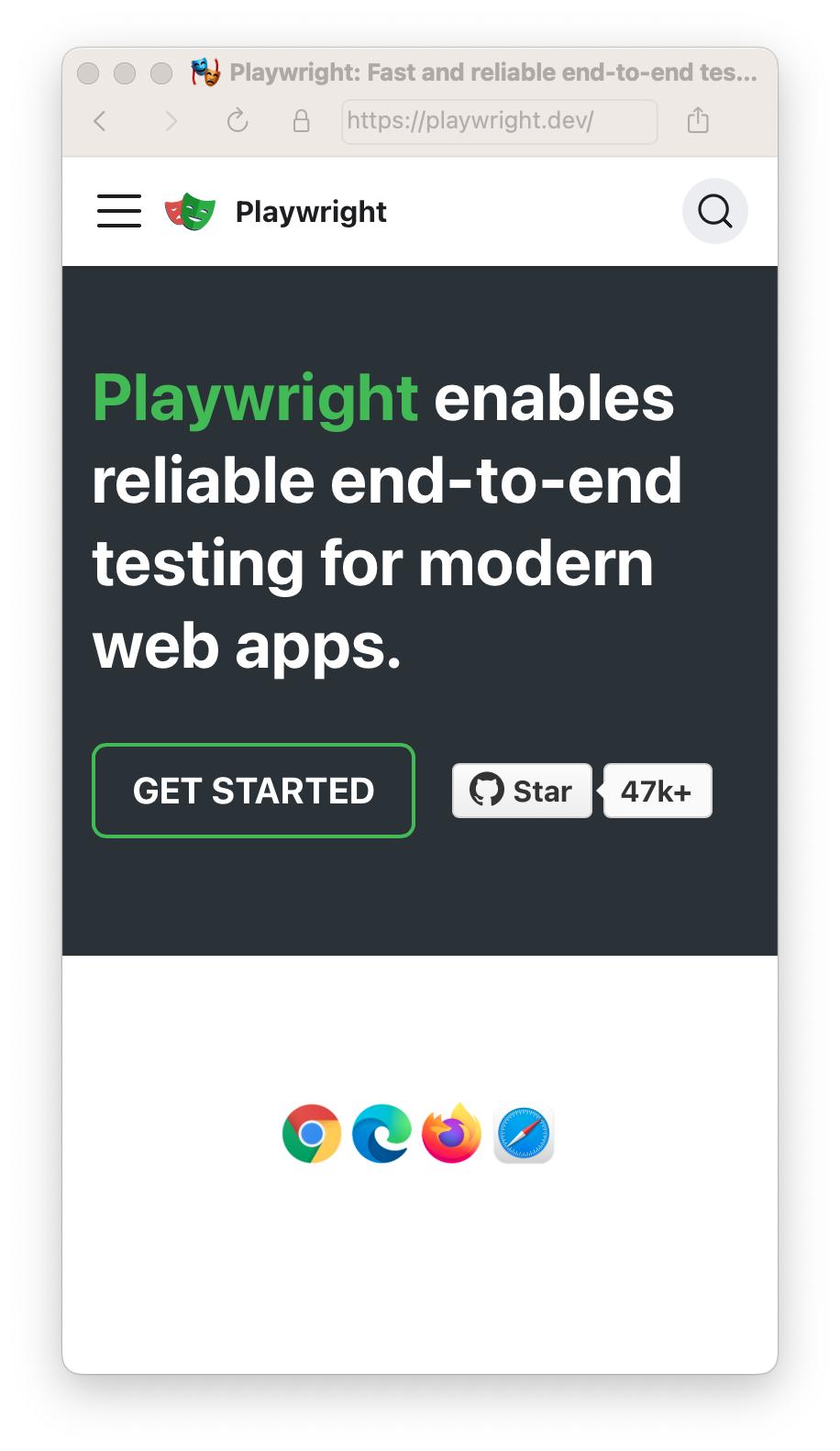
使用 Playwright,你可以在各种浏览器中测试应用,也可以模拟手机、平板等真实设备。只需配置想要模拟的设备,Playwright 就会模拟相应的浏览器行为,包括 "userAgent"、"screenSize"、"viewport" 以及是否启用 "hasTouch"。你还可以为所有测试或特定测试模拟 "geolocation"、"locale" 和 "timezone",设置显示通知所需的 "permissions",或修改 "colorScheme"。
简介
使用 Playwright,你可以在各种浏览器中测试应用,也可以模拟手机、平板等真实设备。只需配置想要模拟的设备,Playwright 就会模拟相应的浏览器行为,包括 "userAgent"、"screenSize"、"viewport" 以及是否启用 "hasTouch"。你还可以为所有测试或特定测试模拟 "geolocation"、"locale" 和 "timezone",设置显示通知所需的 "permissions",或修改 "colorScheme"。
设备
Playwright 通过 playwright.devices 提供部分桌面设备、平板和移动设备的参数目录。它可用于模拟特定设备的浏览器行为,包括 user agent、屏幕尺寸、视口以及是否启用触摸功能。所有测试都将使用指定的设备参数运行。
playwright.config.ts
import { defineConfig, devices } from '@playwright/test'; // import devices

export default defineConfig({
  projects: [
    {
      name: 'chromium',
      use: {
        ...devices['Desktop Chrome'],
      },
    },
    {
      name: 'Mobile Safari',
      use: {
        ...devices['iPhone 13'],
      },
    },
  ],
});
注意:预配置设备默认使用特定平台。例如,“Desktop Chrome” 提供的是 Windows 平台专用的 user agent 字符串。
如果希望使用实际运行测试的平台所对应的 user agent,我们建议取消设置 user agent 属性。
const context = await browser.newContext({
  ...devices['Desktop Chrome'],
  userAgent: undefined,
});
视口
设备参数包含视口,但你可以通过 page.setViewportSize() 为部分测试覆盖视口设置。
playwright.config.ts
import { defineConfig, devices } from '@playwright/test';

export default defineConfig({
  projects: [
    {
      name: 'chromium',
      use: {
        ...devices['Desktop Chrome'],
        // It is important to define the `viewport` property after destructuring `devices`,
        // since devices also define the `viewport` for that device.
        viewport: { width: 1280, height: 720 },
      },
    },
  ]
});
测试文件:
tests/example.spec.ts
import { test, expect } from '@playwright/test';

test.use({
  viewport: { width: 1600, height: 1200 },
});

test('my test', async ({ page }) => {
  // ...
});
同样的方法也可在测试文件内部使用。
tests/example.spec.ts
import { test, expect } from '@playwright/test';

test.describe('specific viewport block', () => {
  test.use({ viewport: { width: 1600, height: 1200 } });

  test('my test', async ({ page }) => {
    // ...
  });
});
isMobile
指定是否考虑 meta viewport 标签,以及是否启用触摸事件。
playwright.config.ts
import { defineConfig, devices } from '@playwright/test';

export default defineConfig({
  projects: [
    {
      name: 'chromium',
      use: {
        ...devices['Desktop Chrome'],
        // It is important to define the `isMobile` property after destructuring `devices`,
        // since devices also define the `isMobile` for that device.
        isMobile: false,
      },
    },
  ]
});
地区设置与时区
模拟浏览器的地区设置与时区。你可以在配置中为所有测试设置全局值,再为特定测试覆盖这些值。
playwright.config.ts
import { defineConfig } from '@playwright/test';

export default defineConfig({
  use: {
    // Emulates the browser locale.
    locale: 'en-GB',

    // Emulates the browser timezone.
    timezoneId: 'Europe/Paris',
  },
});
tests/example.spec.ts
import { test, expect } from '@playwright/test';

test.use({
  locale: 'de-DE',
  timezoneId: 'Europe/Berlin',
});

test('my test for de lang in Berlin timezone', async ({ page }) => {
  await page.goto('https://www.bing.com');
  // ...
});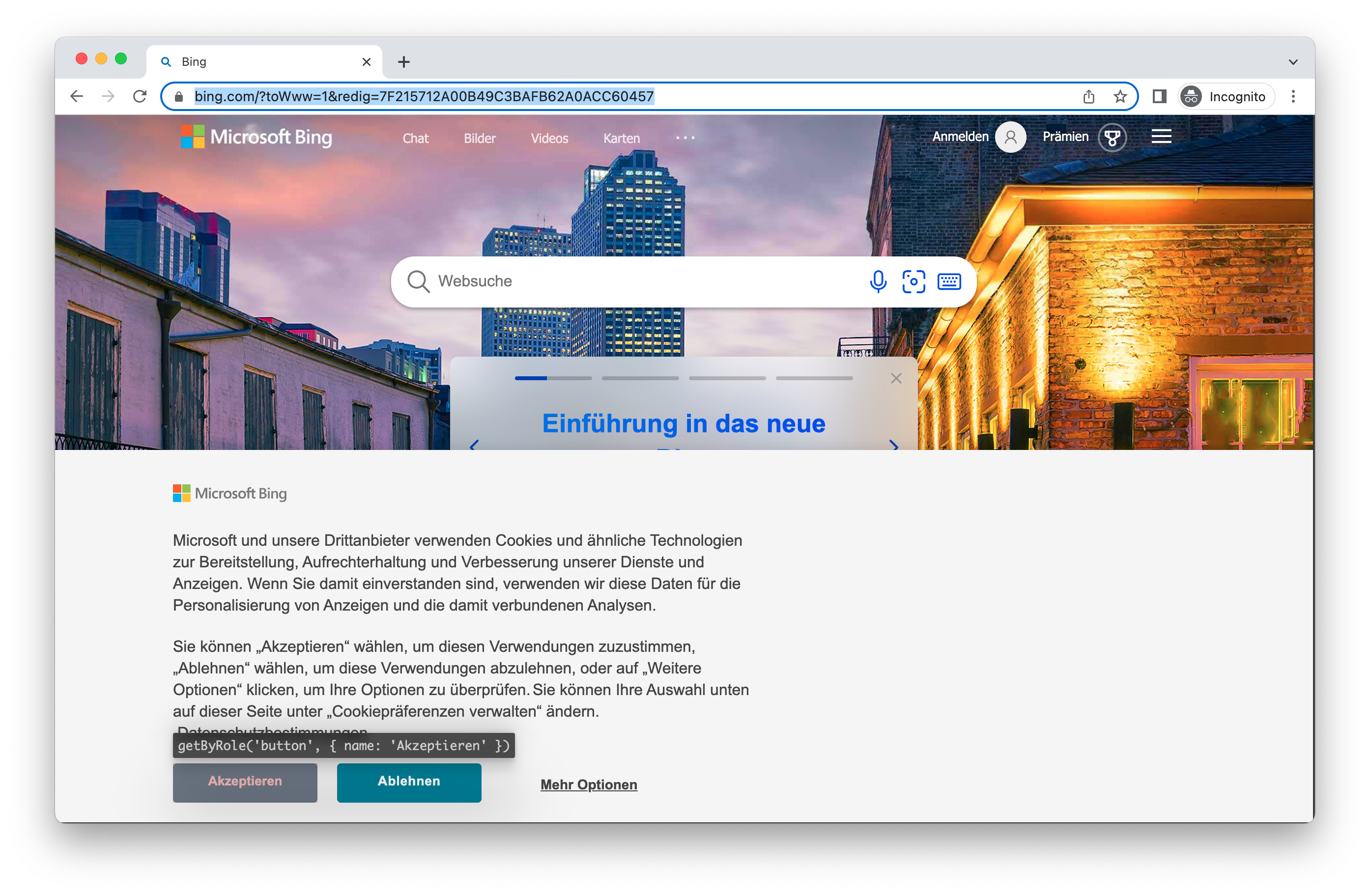
请注意,这只影响浏览器的时区与地区设置,不影响测试运行器的时区。若要设置测试运行器的时区,可以使用 TZ 环境变量。
权限
允许应用显示系统通知。
playwright.config.ts
import { defineConfig } from '@playwright/test';

export default defineConfig({
  use: {
    // Grants specified permissions to the browser context.
    permissions: ['notifications'],
  },
});
允许指定域名显示通知。
tests/example.spec.ts
import { test } from '@playwright/test';

test.beforeEach(async ({ context }) => {
  // Runs before each test and signs in each page.
  await context.grantPermissions(['notifications'], { origin: 'https://skype.com' });
});

test('first', async ({ page }) => {
  // page has notifications permission for https://skype.com.
});
通过 browserContext.clearPermissions() 撤销全部权限。
// Library
await context.clearPermissions();
地理位置
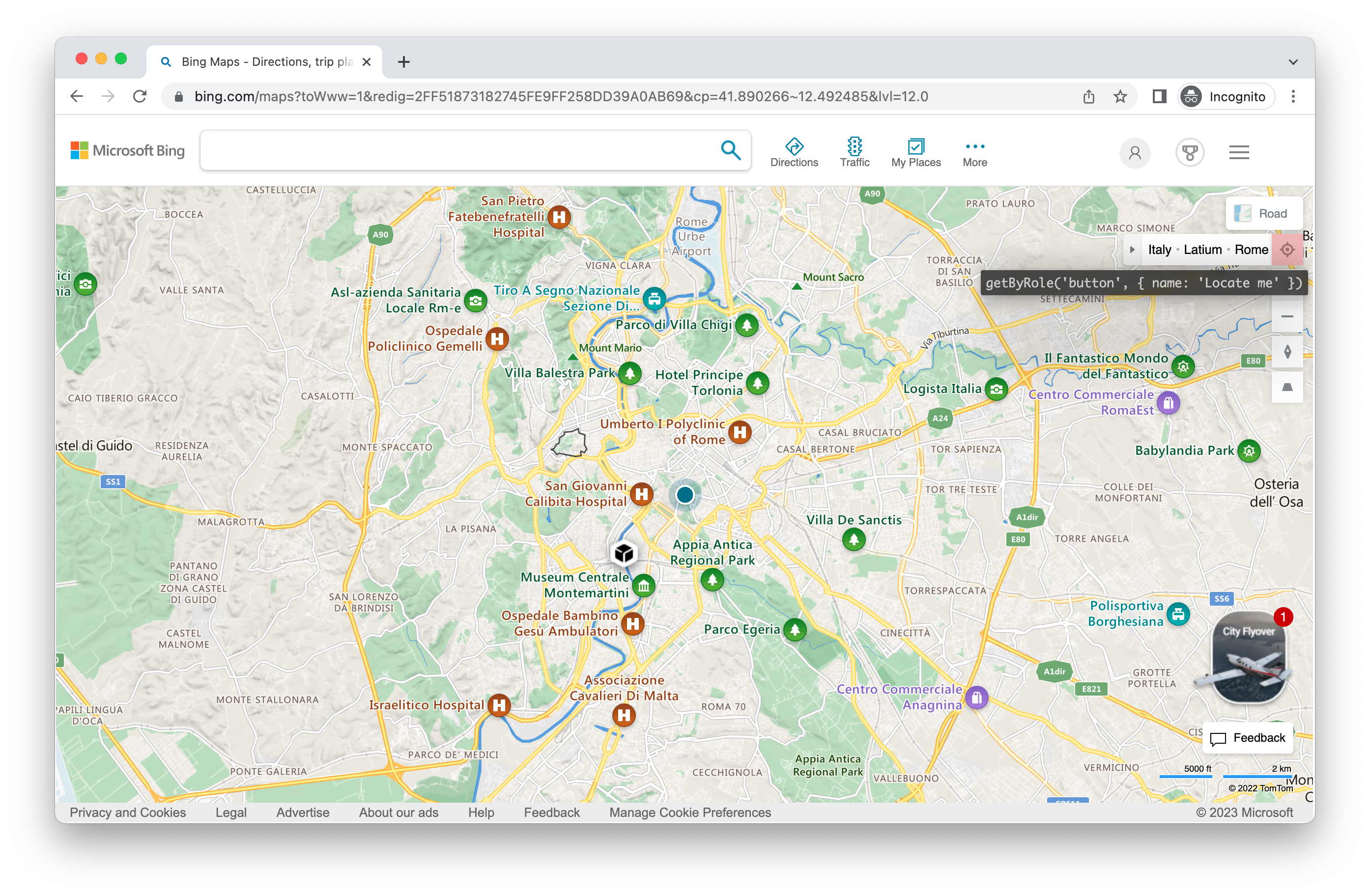
授予 "geolocation" 权限,并将地理位置设为指定区域。
playwright.config.ts
import { defineConfig } from '@playwright/test';

export default defineConfig({
  use: {
    // Context geolocation
    geolocation: { longitude: 12.492507, latitude: 41.889938 },
    permissions: ['geolocation'],
  },
});
tests/example.spec.ts
import { test, expect } from '@playwright/test';

test.use({
  geolocation: { longitude: 41.890221, latitude: 12.492348 },
  permissions: ['geolocation'],
});

test('my test with geolocation', async ({ page }) => {
  // ...
});
之后修改地理位置:
tests/example.spec.ts
import { test, expect } from '@playwright/test';

test.use({
  geolocation: { longitude: 41.890221, latitude: 12.492348 },
  permissions: ['geolocation'],
});

test('my test with geolocation', async ({ page, context }) => {
  // overwrite the location for this test
  await context.setGeolocation({ longitude: 48.858455, latitude: 2.294474 });
});
请注意,地理位置的修改会作用于该浏览器上下文中的所有页面,不能只修改其中一个页面。
配色方案与媒体类型
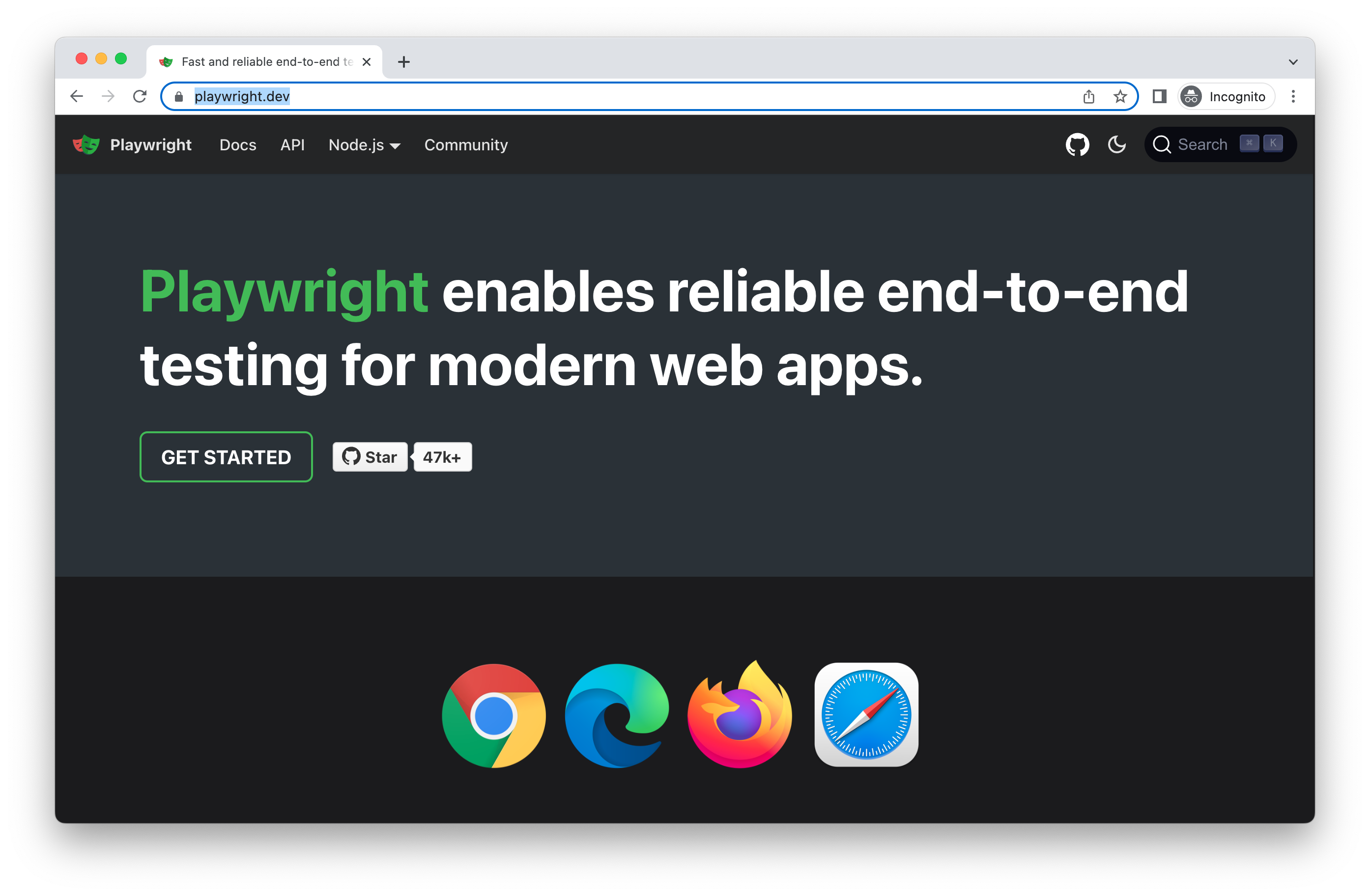
模拟用户的 "colorScheme"。支持的值为 ‘light’ 和 ‘dark’。你也可以使用 page.emulateMedia() 模拟媒体类型。
playwright.config.ts
import { defineConfig } from '@playwright/test';

export default defineConfig({
  use: {
    colorScheme: 'dark',
  },
});
tests/example.spec.ts
import { test, expect } from '@playwright/test';

test.use({
  colorScheme: 'dark' // or 'light'
});

test('my test with dark mode', async ({ page }) => {
  // ...
});
User Agent
设备参数中已经包含 User Agent,因此通常无需修改。如果确实需要测试不同的 user agent,可以用 userAgent 属性覆盖原值。
tests/example.spec.ts
import { test, expect } from '@playwright/test';

test.use({ userAgent: 'My user agent' });

test('my user agent test', async ({ page }) => {
  // ...
});
离线
模拟网络离线状态。
playwright.config.ts
import { defineConfig } from '@playwright/test';

export default defineConfig({
  use: {
    offline: true
  },
});
启用 JavaScript
模拟用户禁用 JavaScript 的场景。
tests/example.spec.ts
import { test, expect } from '@playwright/test';

test.use({ javaScriptEnabled: false });

test('test with no JavaScript', async ({ page }) => {
  // ...
});
示例代码许可(原文)
    MIT License

    Copyright (c) Microsoft Corporation.

    Permission is hereby granted, free of charge, to any person obtaining a copy
    of this software and associated documentation files (the "Software"), to deal
    in the Software without restriction, including without limitation the rights
    to use, copy, modify, merge, publish, distribute, sublicense, and/or sell
    copies of the Software, and to permit persons to whom the Software is
    furnished to do so, subject to the following conditions:

    The above copyright notice and this permission notice shall be included in all
    copies or substantial portions of the Software.

    THE SOFTWARE IS PROVIDED "AS IS", WITHOUT WARRANTY OF ANY KIND, EXPRESS OR
    IMPLIED, INCLUDING BUT NOT LIMITED TO THE WARRANTIES OF MERCHANTABILITY,
    FITNESS FOR A PARTICULAR PURPOSE AND NONINFRINGEMENT. IN NO EVENT SHALL THE
    AUTHORS OR COPYRIGHT HOLDERS BE LIABLE FOR ANY CLAIM, DAMAGES OR OTHER
    LIABILITY, WHETHER IN AN ACTION OF CONTRACT, TORT OR OTHERWISE, ARISING FROM,
    OUT OF OR IN CONNECTION WITH THE SOFTWARE OR THE USE OR OTHER DEALINGS IN THE
    SOFTWARE